_______________________________________________________

Final Fantasy


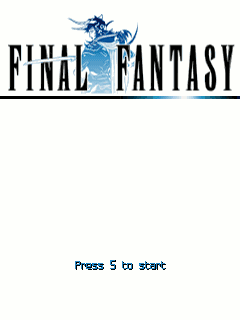
The famous game now on mobile phones! Before you Final Fantasy I - is the very first "Final Fantasy", which was the progenitor of all RPGs and having popularized the genre. The first game, as is known, appeared on the NES, but the developers have altered slightly this version before porting it to mobile phones so outdated graphics you will not see.

The game is set in a fantasy world consisting of three large continents. The forces of nature in this world, determine the status of four luminous crystals, each of which controls the relevant elements: earth, fire, water or wind.

Subject: the world collapsed unhappiness. All four control elements spheres extinguished one after another, which resulted in great distress sea filled with terrible storms, the land gradually ceases to bear fruit, devastating fires burning cities and forests. The only hope is a prophecy, saying that when times get dark times, will come four warriors of light and save the world.

Download Link

For Sony Ericsson (240x320)
http://www.ziddu.com/download/10578...20_se.jar.html

For Touchscreen (all resolution)
http://www.ziddu.com/download/10578...creen.jar.html

For Nokia s40v3 (240x320)
http://www.ziddu.com/download/10578...0_s40.jar.html

For Sony Ericsson (176x220)
http://www.ziddu.com/download/10578...20_se.jar.html

Nokia E71 and E66 get Ovi Maps free navigation


Nokia today announced the availability of Ovi Maps 3.3 (3.03) for the Nokia E71 and E66. The updated version brings the free worldwide pedestrian and car navigation edition of Ovi Maps to these devices. Nokia says the release is a result of listening to consumer feedback: 'you spoke, we listened', says the press release. The E71 and E66 versions do not include the Lonely Planet guides due to technical constraints, but the core navigation offering is the same as that found on more recent devices.

The process of making the latest version of Ovi Maps available for existing devices is quite involved, but the team managed to include complete navigation functionality. Due to technical constraints in back porting the app to existing devices, unfortunately, it wasn’t possible to offer further premium content such as the Michelin and Lonely Planet guides.


The announcement is a follow on from January 21st, when Nokia announced that Ovi Maps was going free.

In the press release, Nokia note that the E71 and E66 will be "the last of our S60 3.1 and older devices to sport this version of Ovi Maps". This means we will not be seeing free navigation support for the Nokia N95 and other S60 3.1 devices. However, as we noted in an earlier story Nokia have reduced the licenses prices significantly for pre-3.3 versions of Ovi Maps, which means navigation is available for older devices at a very low cost.

Ovi Maps 3.3 (3.03) on the E71 and E66

Ovi Maps is a relatively large install and will be placed on the C: drive, so you will need to ensure that you have enough free disk space (recommended 10MB or more) before installing the new version. It will replace any existing version of Ovi Maps or Nokia Maps that is installed on the device.

In usage there are occasions, as with earlier version on the Nokia E71, when Ovi Maps can feel somewhat sluggish compared to more recent devices. However the streamlined user interface is a significant improvement and the new version is a recommended install for all E71 and E66 users, not least for the availability of free car and pedestrian navigation.


Ovi Maps for the Nokia E71 and E66 will be made available via the maps.nokia.com website. It will also likely appear in the Ovi Store shortly.

Maemo 5

The UI in Maemo 5 has changed with respect to its predecessors. It provides four fully customizable (add/remove widgets, move widgets around, change the background, shortcut to applications/contacts) "Home" screens, called Panorama Desktop. Switching from one desktop to the others is done by sliding one's finger horizontally on the background. The dashboard is accessed via the upper left icon and shows all the running applications, in a manner similar to the Exposé feature in Apple's MacOS X operating system.

From the dashboard, running applications can be brought back to fullscreen by tapping the preview window or applications can be closed by tapping an X-symbol located in the top right corner of the preview window, similar to the concept of closing applications in the Windows operating system series. The application launcher, where all the installed applications can be launched, can be accessed as well from the dashboard by tapping the same area again in the upper left corner of the screen which invokes the dashboard. If no task or application is running in the background, tapping the top left icon skips the dashboard and directly displays the application launcher.

Maemo provides the Mozilla-based MicroB web-browser with complete Adobe Flash support, which can operate over a wireless connection. It supports an 800x480 display resolution, so some web pages can be viewed without horizontal scrolling. It can automatically connect to known wireless networks and download RSS feeds and email and disconnect automatically without user intervention.

Software is all installed or uninstalled using the Application manager. Users can subscribe to different software repositories which can then be used to automatically keep software up to date. The Application manager also provides an overview of everything currently installed on the system. Data can be synchronized with a PC via a USB connection, and the users files can be accessed using the standard Removable Storage Device protocol.


About Maemo OS

Maemo is a software platform developed by Nokia for smartphones and Internet Tablets. It is based on the Debian Linux distribution.
The platform comprises the Maemo operating system and the Maemo SDK.

Maemo is mostly based on open source code, and has been developed by Maemo Devices within Nokia in collaboration with many open source projects such as the Linux kernel, Debian, and GNOME. Maemo is based on Debian GNU/Linux and draws much of its GUI, frameworks, and libraries from the GNOME project. It uses the Matchbox window manager, and the GTK-based Hildon as its GUI and application framework.

The UI in Maemo 4 is similar to many handheld interfaces, and features a "Home" screen, which acts as a central point from which all applications and settings are accessed. The Home Screen is divided into areas for launching applications, a menu bar, and a large customisable area that can display information such as an RSS reader, Internet radio player, and Google search box.

The Maemo 5 UI is slightly different: The menu bar and info area are consolidated to the top of the display, and the four desktops can be customized with shortcuts and widgets.

At the Mobile World Congress in February 2010, it was announced that the Maemo project would be merging with Moblin to create the MeeGo mobile software platform.


Nokia Phone as a Scanner


I apologise to old camera-phone hands who've been down this road before - this will seem a bit obvious, but, for the newcomers around here and to anyone who might not have thought this laterally before, consider that your auto-focus camera in your Symbian smartphone is good enough to replace a Scanner for occasional use.

I discovered this when my old Canon desktop scanner fell into disuse because it plugged in using the PC parallel port and I simply ran out of computers which had one of these. I'm not a big scanner user and didn't miss it much - and, being just an average home, we don't have our own photocopier. Then one day my wife popped into my office with two A4 classroom worksheets: "Can you scan these in, please, and print off a dozen copies?"

Tempting though it was to scarper off to the local library and pay the £2 or so needed for the copying, it suddenly occurred to me that, with a 3 megapixel camera in my Nokia N93, surely that was good enough to produce a good-enough representation of anything put before it? After all, I could focus exactly, even add in some fill-in LED flash if needed. It was time to experiment.

And, you know what? The end result of my improvised workflow was quite good enough for the classroom worksheets, as I'll show below with another example. Most importantly, for a geek like me, it meant yet another use for my smartphone, one more example of convergence that's useful in the real world. Bah, who needs a scanner or photocopier now?

Obviously, there are large numbers of office situations where you do in fact need dedicated bits of kit, but for occasional home use I've now managed without a scanner for almost four years, simply using whichever phone I happened to be using.

Here's what I do, should you also not have thought of this and want to try your hand at using your phone-scanner.

1. You'll need a phone with an auto-focus camera. So anything of the order of the Nokia N93, N95, N82, E90, E71, N85, 5800, Samsung INNOV8, etc. (from just the S60 range), or the Sony Ericsson P1i or P990i (from the old UIQ range). Think of 3 megapixels as a bare minimum here, you'll need this much resolution if you want to scan in text accurately enough to read back later.

To show that all this is possible using the aforementioned minimum, I'm using the small-apertured 3 megapixel, auto-focus camera on the Nokia 5800 for the example. If this phone can work as a scanner then it'll be a piece of cake with most of the rest of the list mentioned above.

2. Find a nice, light window ledge (but not in direct sunlight) - you want even, bright, white lighting. Don't assume that indoor lights will do, however bright they seem to the naked eye - the human eye is incredibly good at adapting and fooling your brain. Place your document/page flat and then position the phone to fit the page within the frame, as shown here.


Focus and take the shot, as usual, while trying desperately not to shake the camera as you squeeze the shutter. If the light levels are high enough then you won't have a problem here.

3. Connect up your phone to your desktop (PC or Mac) and transfer the photo using whichever multimedia/image transfer system you prefer. OK, you've now 'scanned' your page, but the JPG file needs a little work on it before you're done. (Again, please remember that this is something of a beginner's tutorial, I'm not trying to patronise those who know all this already!)

You'll need a basic photo manipulation application, I use an old cover-disk version of Paintshop Pro on the PC and the freeware SeaShore on the Mac. If you can't find anything, you can always use Adobe's online app instead for free.

4. Open up the JPG file in your chosen photo app:


Not bad, a well-focussed, reasonably well lit 3 megapixel photo, if I do say so myself. Here's a cropped part of it, to show the sort of level of detail captured by a 3mp phone camera:


5. Again, pretty good, and certainly good enough for casual scanning/photocopying.

6. For printing out again, assuming that's what you need here, i.e. using the phone-desktop-printer combination as a photocopier, it's usually a good idea to perform a few basic operations on the JPG file. The exact details will vary, depending on your chosen software, but for this sort of use, I typically:

* Crop the edges to within the paper boundaries
* Bring the brightness up a bit and the contrast up a lot
* (if needed) Convert to greyscale or even, as here, to black and white (2 colours) or similar

Here's the sort of thing I end up with:


Again, all this is with the rather average camera (by Nseries standards) on the Nokia 5800 - you'll get much better quality still using the likes of the N95 or N82.

It's also worth thinking even more laterally about your phone as a document capture device. In a meeting and can't be bothered to write down everything someone's just scribbled all over a whiteboard? Just stand up and photograph the board and transcribe/refer to it later. At a restaurant and sent off to enquire about the specials of the day? No point in trying to remember them all or write them all down, just photograph the blackboard and read off at your leisure from Gallery later. And so on.

eXTReMe Tracker